Getting started, step 3 of 7
Add vehicles
Create your vehicle types, such as Sedan, SUV and Sprinter, then add each car to your fleet with its plate and paperwork.
Before you start
- Every vehicle needs a vehicle type, so set those up first (part 1). Creating vehicle types needs the Owner or Admin role.
- For each car, have the make, model, year, color, license plate and number of seats.
- Have insurance and registration documents ready as PDFs or photos.
Steps
Part 1: Add a vehicle type
-
Step 1: Click Settings, then under Dispatch Config click Vehicle Types.
-
Step 2: Click Add type. On a new account, click Create your first vehicle type instead.
-
Step 3: Type a Name your office uses, such as Sedan, SUV, Sprinter or Stretch Limo. Slug fills in by itself.
-
Step 4: Choose the Base type: Sedan, SUV, Van, Luxury or Minibus.
There is no Sprinter base type. For a Sprinter, choose Van or Minibus.
-
Step 5: Set Passenger capacity and Luggage capacity, then click Save.
-
Step 6: Repeat for each kind of vehicle you run.
Part 2: Add a vehicle
-
Step 1: In the left menu under Directory, click Fleet.
-
Step 2: Click Add Vehicle, or press N.
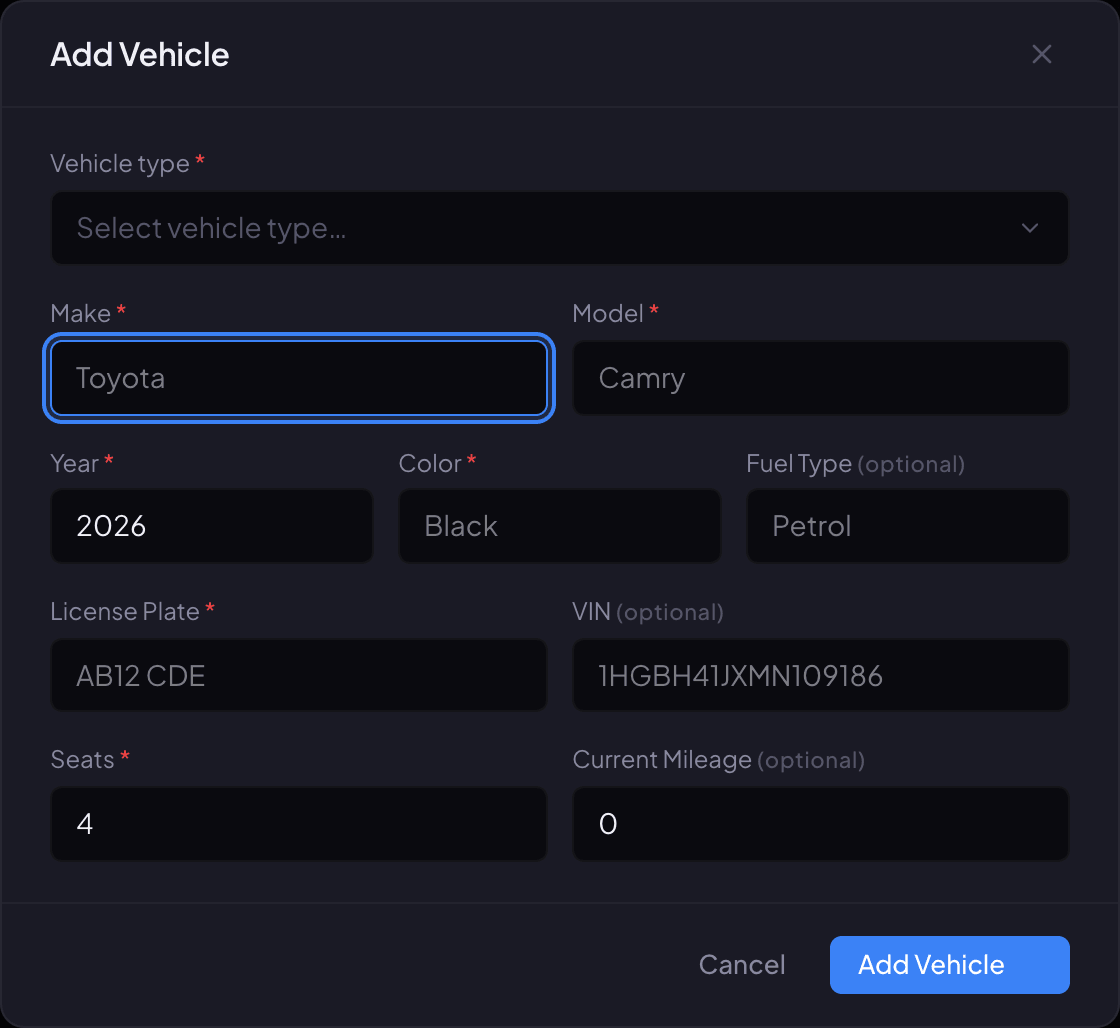
The Add Vehicle window. Fields marked with a star are required. -
Step 3: Choose the Vehicle type, then fill in Make, Model, Year, Color, License Plate and Seats.
Fuel Type, VIN and Current Mileage are optional.
-
Step 4: Click Add Vehicle. You'll see a message like Vehicle Cadillac Escalade added, and the car appears on the Fleet list as Active.
Part 3: Upload insurance and registration
-
Step 1: On the Fleet list, click the vehicle. A panel called Vehicle Details opens.
-
Step 2: Click the Docs tab.
-
Step 3: Choose the document type first, such as Insurance or Registration. If you skip this, the file is saved as Other.
-
Step 4: Click Upload and choose the file. You'll see Document uploaded.
You're ready when…
every car you run is on the Fleet page as Active, with the right vehicle type.
Next step: Add your drivers
If something looks wrong
-
Vehicle type says No vehicle types configured.
Add a vehicle type first (part 1), then come back to Fleet.
-
A record with these values already exists when you add a vehicle.
That license plate is already on your Fleet list. Type it into Search by make, model, plate... to find the car.
-
Clicking Save on a vehicle type does nothing.
Only the Owner or an Admin can save vehicle types. If you are one, try a different Name: two vehicle types can't share the same Slug.
-
Failed to upload document.
Use a PDF, JPG, PNG or WebP file. If a good file still fails, call us.
-
You need to fix a car's make, model or plate, or take it out of service.
The Fleet page can only update a car's mileage today (Update on the Details tab). Call us and we'll make the change.
-
The DRIVER column says Unassigned after you gave the car to a driver.
It fills in once that driver has signed in to the driver app. The Drivers list shows the vehicle right away.
Still stuck?
Call +1 (630) 998-6261 or email support@renaroapp.com. Tell us which guide you were following and the step you were on.