Getting started, step 5 of 7
Set up rates and zones
Draw your service area as zones, create the fare profile that prices every trip, add flat zone-to-zone prices, and check a price before you quote it.
Before you start
- You need the Owner or Admin role. Dispatchers can look at rates but not change them.
- Add your vehicle types first. See Add vehicles.
- Have your rates in front of you: base fare, per mile, per minute, minimum, hourly and gratuity.
- Know the ZIP codes you serve. Flat zone-to-zone prices need at least two zones.
Steps
Part 1: Create your zones
-
Step 1: Click Settings, then under Geography click Zones.
-
Step 2: Click New zone. A full-screen map opens.
-
Step 3: Add the area. Type ZIP codes in the box on the left, such as 60601, 60614, or 606 for every ZIP starting with 606, and press Enter. You can also click ZIP areas on the map.
For an airport, type its name in Airport, city, or address and choose Add entire airfield.
-
Step 4: Click Save zone. Give it a Name such as O'Hare or Downtown Chicago, a Short code of 2 to 8 letters such as ORD, and a Type such as Airport or Place.
-
Step 5: Click Save zone to finish, or Save & next to start the next zone straight away.
Part 2: Create your fare profile
-
Step 1: In Settings under Billing & Pricing, click Fare Profiles.
-
Step 2: Click Create profile. On a new account, click Create your first profile instead.
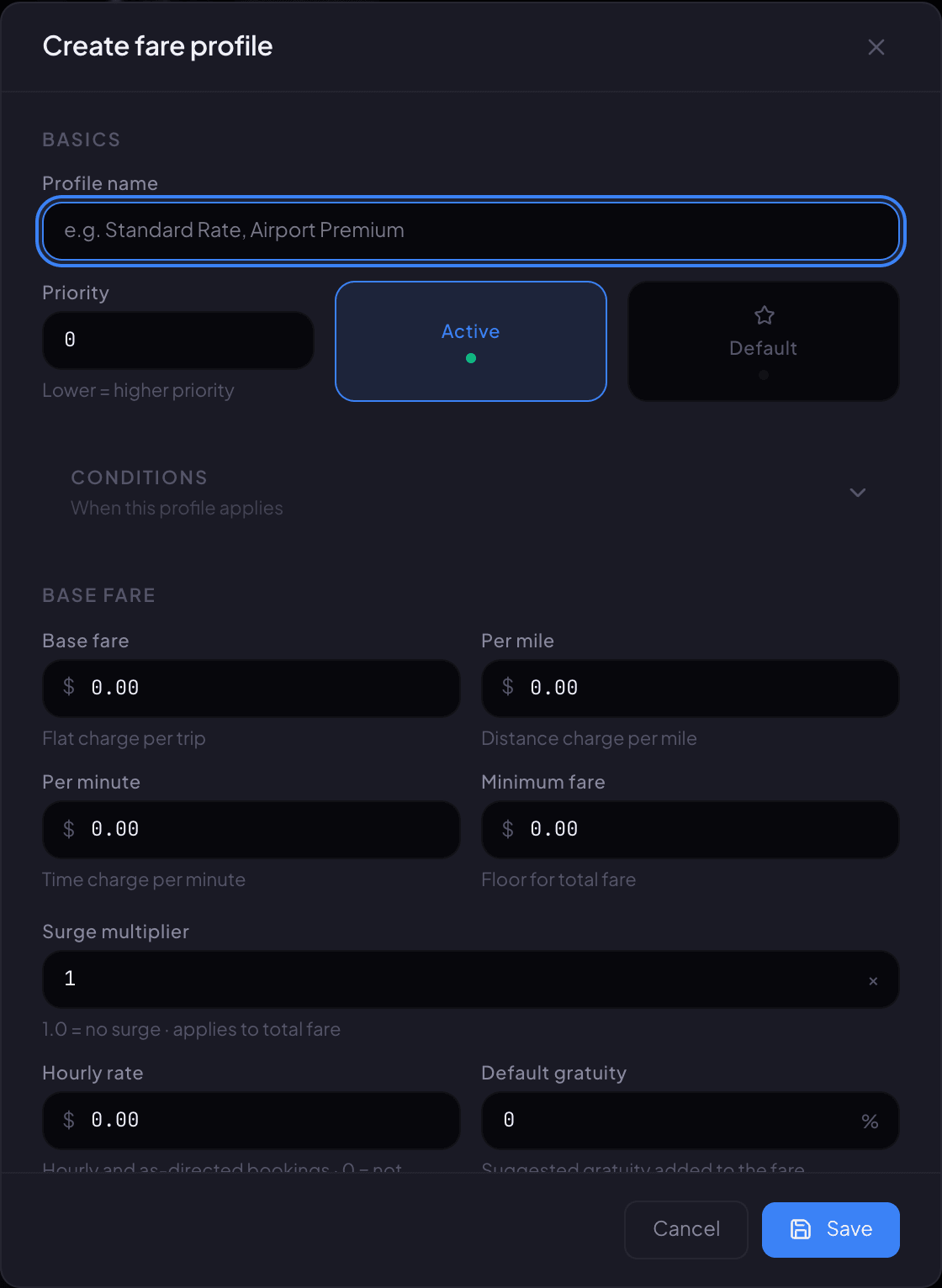
The Create fare profile window. Turn on Default for the profile that prices your reservations. -
Step 3: Type a Profile name, such as Standard rates. Leave Active on and turn Default on.
Renaro prices reservations with the profile marked Default. A profile that isn't the default won't be used on its own.
-
Step 4: Leave Conditions as they are, so Vehicle type says Any vehicle type and both zones say Any zone.
-
Step 5: Fill in Base fare, Per mile, Per minute and Minimum fare, then Hourly rate and Default gratuity.
Set Hourly rate to 0 if you don't offer hourly trips.
-
Step 6: Click Save. The profile shows Default and Active in the list.
Part 3: Add flat prices between zones (optional)
-
Step 1: In Settings under Billing & Pricing, click Pricing, then Zone Matrices in the menu on the left.
-
Step 2: Click New matrix. Type a Name, such as Airport flat rates, turn on Set as default, and click Create matrix.
-
Step 3: Each row is a Pickup zone and each column a Drop-off zone. Click the square where they meet, type the price, and press Enter. It saves by itself.
Turn on Set both directions to set the return trip to the same price.
-
Step 4: For a different price by vehicle, click the vehicle under Prices for, such as SUV, then click Fill SUV from base. Choose Percentage of base or Amount above base, enter the Adjustment, and click Fill SUV cells.
Part 4: Check a price
-
Step 1: On the Pricing page, click Fare Calculator in the menu on the left.
-
Step 2: Choose the Vehicle type, the Pickup zone and Dropoff zone, and the Distance and Duration.
-
Step 3: Click Calculate fare. The result shows which profile priced it next to Plan:, and the fare line by line.
You're ready when…
the Fare Calculator gives the price you'd quote on the phone for a trip you run every week.
Next step: Take a test reservation
If something looks wrong
-
Reservations show No active fare profile matches this pricing request.
Make sure one profile is both Active and Default, with Vehicle type set to Any vehicle type.
-
Every vehicle type gets the same per-mile rate.
Right now Renaro prices every trip with the one Default profile. Charge more for an SUV or Sprinter with flat prices by vehicle in a zone matrix (part 3). If you need per-mile rates that differ by vehicle, call us before you go live.
-
Fare Profiles shows Fare profiles match per vehicle type and zone pair. Add at least one of each before creating a profile.
Add a vehicle type and at least one zone first, then come back.
-
A zone with this short code already exists.
Pick a different Short code for the new zone.
-
The zones screen says Map unavailable.
You can still type ZIP codes into the box on the left. Call us so we can turn the map back on.
-
A square in the zone matrix can't be edited.
Trips that start and end in the same zone can't have a flat price. They're priced by your fare profile.
-
Draw zone on the Zones screen won't make a new zone.
Draw zone only adds ZIPs to a zone you already have. Use New zone to create one.
Still stuck?
Call +1 (630) 998-6261 or email support@renaroapp.com. Tell us which guide you were following and the step you were on.