Create a customer or corporate account
Add a customer so their details fill in on every reservation, set up a corporate account with billing terms, and link travelers to it.
Before you start
- Adding customers needs the Owner, Admin or Dispatch role. Corporate accounts also work for Finance.
- Each customer needs a first name and a phone number. Email is optional here, but reservations need one.
- For a corporate account, have the company name, billing email and payment terms.
- Corporate accounts are included on the Growth plan and up.
Steps
Part 1: Add a customer
-
Step 1: In the left menu under Directory, click Customers. The page is called Customer Directory.
-
Step 2: Click Add Customer, or press N.
-
Step 3: Fill in First name and Phone number. Add Last name and Email if you have them.
The country code starts as US / Canada +1.
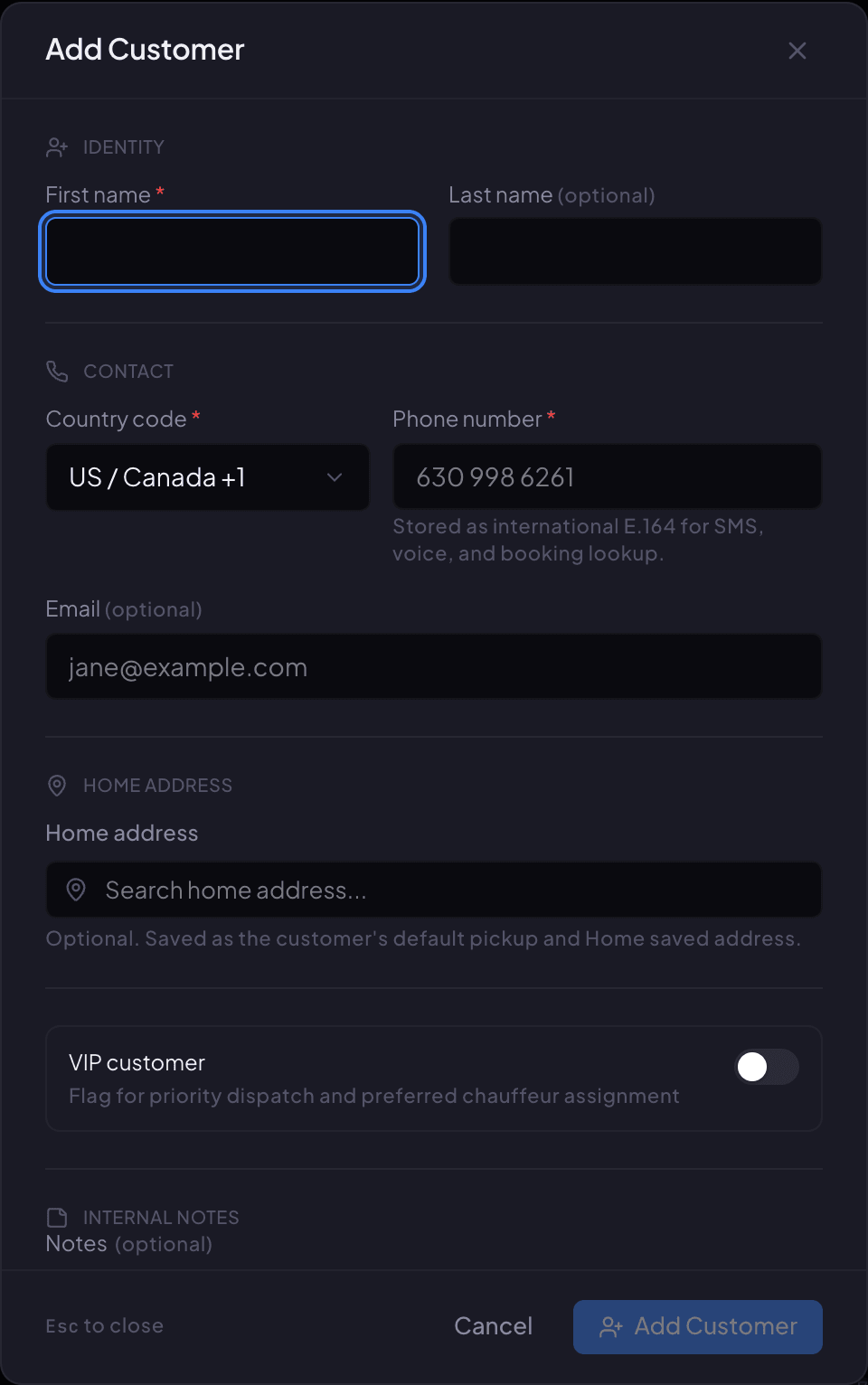
The Add Customer window. Only first name and phone number are required. -
Step 4: Optional: search their Home address so it becomes their default pickup, turn on VIP customer, and add Notes your dispatchers should see.
-
Step 5: Click Add Customer. You'll see Customer "Dana Whitfield" created with their name.
Part 2: Add a corporate account
-
Step 1: In the left menu under Directory, click Corporate.
-
Step 2: Click Add account, or press N.
-
Step 3: Type the Company Name. Add a Contact Name and Contact Phone if you have them.
-
Step 4: In the billing section, type the Billing Email and choose Payment Terms: Net 15, Net 30, Net 45, Net 60 or Net 90. Add a Billing Address and a Credit Limit if you use them.
-
Step 5: In the pricing section, set an Account Discount % or a Max Fare Per Trip if you agreed to one.
-
Step 6: Click Add account. You'll see Corporate account created.
Part 3: Link a traveler to the account
-
Step 1: Go to Customers and open the traveler.
-
Step 2: Click the Corporate tab, then Add to corporate account.
-
Step 3: Search for the account. Fill in Department, Cost center and any monthly limits you need.
Turn on Custom reference required on every booking if the company needs a PO or reference number on each trip. Turn on Set as default billing account to bill their trips to the company automatically.
-
Step 4: Click Add link. You'll see Passenger added to corporate account.
If something looks wrong
-
A passenger with this phone number already exists in your organization.
That customer is already in Renaro. Search the Customer Directory by their phone number.
-
The Corporate page says Corporate accounts isn't included in your plan.
Corporate accounts come with the Growth plan and up. Click View plans to see yours, or call us.
-
Corporate account name already exists for this organization.
An account with that name is already on the Corporate page. Open it instead of making a second one.
-
Saving a customer shows Passenger custom field with is required.
Your company made a custom customer field required, and this form doesn't include it. An Admin can change that under Settings, Developer, Custom Fields.
-
Add Customer stays grayed out.
Fill in First name and Phone number; both are required.
Still stuck?
Call +1 (630) 998-6261 or email support@renaroapp.com. Tell us which guide you were following and the step you were on.