Getting started, step 6 of 7
Take a reservation
Enter a trip while the customer is on the phone: who is riding, from where to where, when, in what vehicle, and how they'll pay. Then approve it for dispatch.
Before you start
- You need the Owner, Admin or Dispatch role.
- Your rates must be set up, or the trip can't be priced. See Set up rates and zones.
- Have the passenger's first and last name, phone and email. All four are required.
- To take a card, your company must be connected to Stripe. See Send a pay link and collect payment.
Steps
Part 1: Enter the trip
-
Step 1: In the left menu, click Bookings, then New booking. On the Dashboard you can click New Booking or press N instead.
-
Step 2: The Create reservation panel opens.
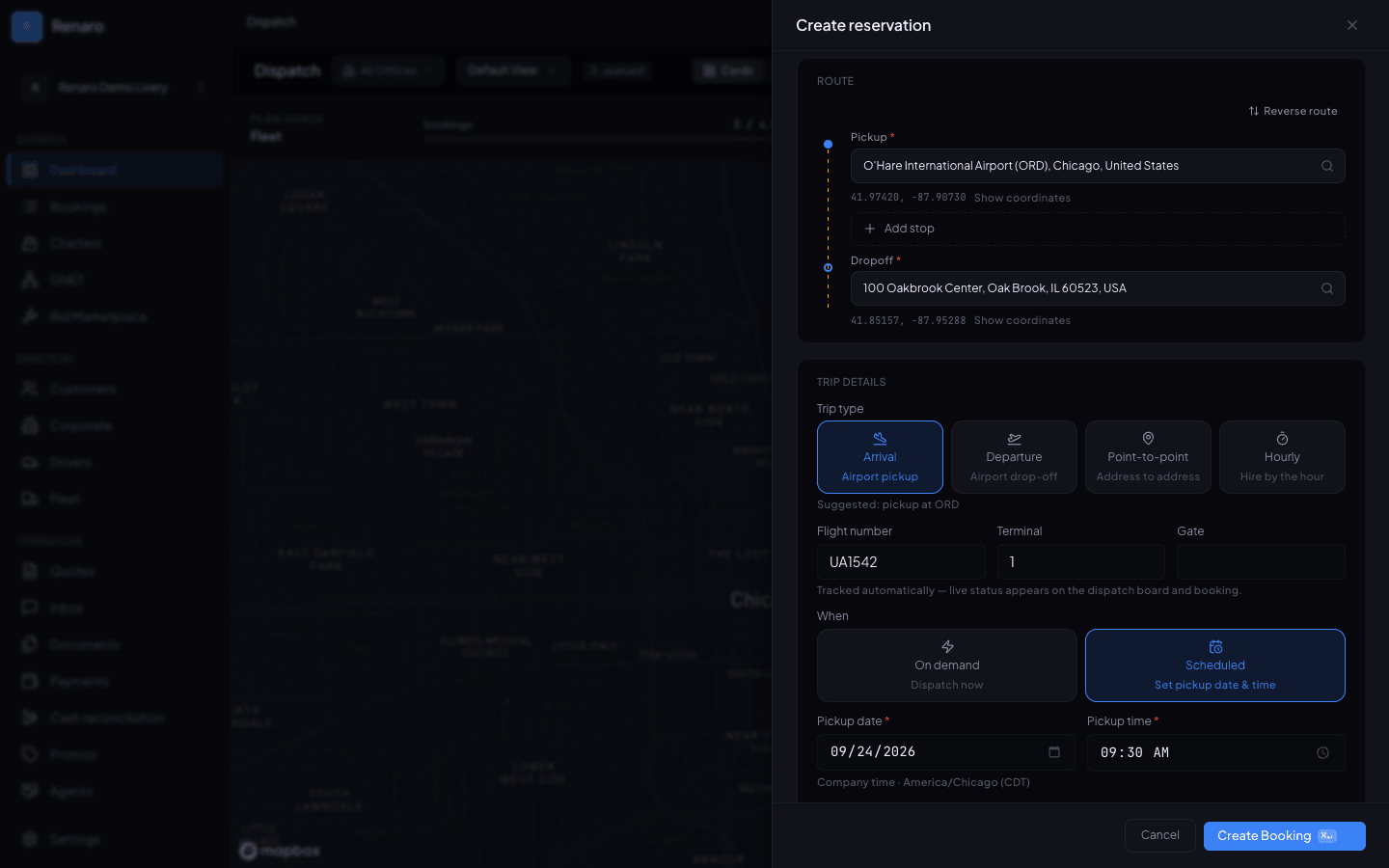
The Create reservation panel: the route, the trip type and flight, and when to pick up. Create Booking is at the bottom. -
Step 3: In Customer lookup, type the customer's name, phone or email and pick them from the list. Their details fill in.
For a new customer, fill in First name, Last name, Phone and Email instead.
-
Step 4: Under Route, type the Pickup address and choose it from the suggestions. Do the same for Dropoff. Click Add stop for a stop on the way.
Always pick the address from the list that appears, so Renaro knows exactly where it is.
-
Step 5: Under Trip Details, choose the Trip type: Arrival, Departure, Point-to-point or Hourly. When the pickup or drop-off is an airport, Renaro suggests Arrival or Departure for you.
For Hourly, enter the Hours. The drop-off can stay empty for an as-directed hire. The Fare Estimate is then worked out from the pickup and the hours.
-
Step 6: Under When, choose Scheduled and enter the Pickup date and Pickup time, or choose On demand to send a car now.
Pickup times are in your company's time zone, which is shown under the fields.
-
Step 7: Check the Pickup type, then choose the Vehicle type and enter Passengers and Luggage.
-
Step 8: Choose the Payment method: Cash, Card or Account.
-
Step 9: Add anything the chauffeur should know under Notes, in Dispatcher notes.
-
Step 10: Check the Fare Estimate. Change a line if you agreed a different price, or choose a charge in Add a charge and click Add. Set the gratuity if needed; the totals include it.
-
Step 11: Click Create Booking, or press Cmd+Enter (Ctrl+Enter on Windows). Review reservation shows everything the trip will be saved with. Click Back to edit to change something, or OK to save it.
If the fare isn't priced yet, the review says the fare is priced when the booking is saved. It still shows the gratuity. A percentage gratuity shows Computed on save until then.
-
Step 12: You'll see Reservation created. Click Open booking to see it, Book return trip to start the ride back with the route reversed (not offered for an hourly hire), or Make a new booking.
For a card payment, the panel moves on to Take payment first.

Part 2: Approve it for dispatch
-
Step 1: A new reservation starts as Pending Approval and its badge shows Requested. It won't appear on the Dispatch screen yet.
-
Step 2: On the reservation, click Approve booking.
-
Step 3: Then click Confirm booking. You'll see Booking status updated. each time.
-
Step 4: The reservation is now ready to assign. See Assign a driver and vehicle.
Part 3: Find it again later
-
Step 1: On Bookings, use the status buttons such as Pending Approval or Confirmed, and the date buttons Today and Upcoming.
-
Step 2: To search, press / or Cmd+K (Ctrl+K on Windows) and type the reservation number or the customer's name.
You're ready when…
your test reservation shows the right price and says Confirmed after you approve it.
Next step: Send your first trip
If something looks wrong
-
Pickup time must be in the future.
Check the date and time. For a trip leaving now, choose On demand.
-
Pickup latitude is required.
The address was typed but not picked. Click in Pickup, type it again, and choose it from the suggestions.
-
The fare shows Set up a matching fare profile and Create Booking is grayed out.
No rate covers this trip. Check that your fare profile is Active and Default. See Set up rates and zones.
-
This customer is blocked by your organization and cannot be booked.
Someone in your office blocked this customer. Remove the link with the X next to their name, or ask an Admin.
-
Stripe Connect onboarding is required before customer payments can be accepted.
Your company isn't connected to Stripe yet. Choose Cash or Account for now, and see Send a pay link and collect payment.
-
The reservation doesn't show on the Dispatch screen.
It still needs approval. Open it and click Approve booking, then Confirm booking.
Still stuck?
Call +1 (630) 998-6261 or email support@renaroapp.com. Tell us which guide you were following and the step you were on.