Getting started, step 7 of 7
Assign a driver and vehicle
Send a confirmed reservation to a chauffeur from the Dispatch screen. Renaro lists the nearest available drivers and sends their car with them.
Before you start
- You need the Owner, Admin or Dispatch role.
- The reservation must be approved and confirmed. See Take a reservation.
- The driver must be signed in to the driver app and ONLINE, near enough to the pickup, and not on another trip.
- Renaro sends the driver's primary vehicle. Change it on the driver's profile before you assign (part 2).
Steps
Part 1: Assign from the dispatch screen
-
Step 1: In the left menu, click Dashboard. The screen is called Dispatch.
-
Step 2: At the top, choose Cards. (M switches between Cards, Grid and Board.)
-
Step 3: In Unassigned Bookings, click the reservation.
-
Step 4: The Assign tab on the right lists the Nearest drivers. Each driver shows their vehicle, how many minutes and miles away they are, and labels such as Best match or Closest.
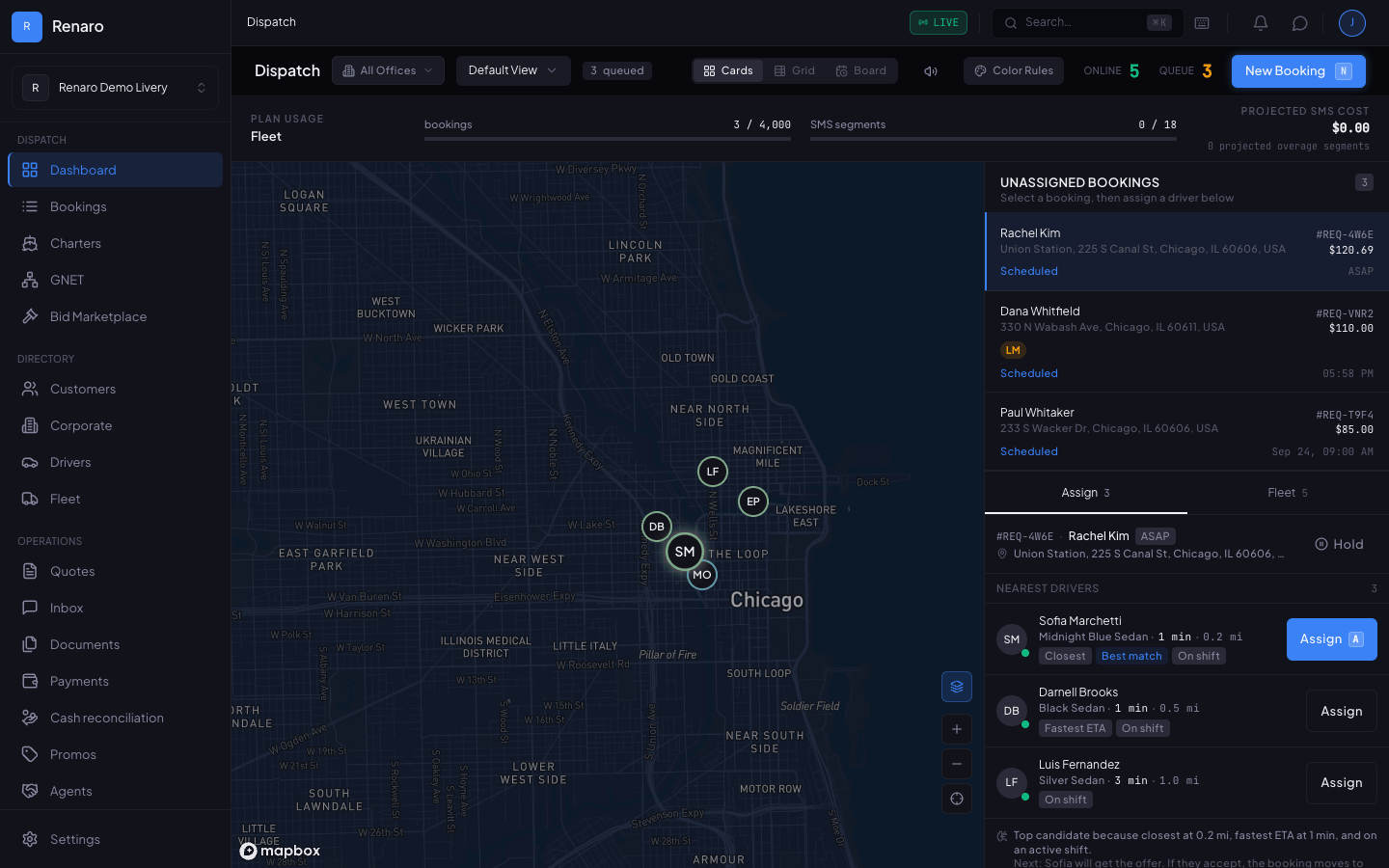
Dispatch, Cards view: pick a reservation, then click Assign next to a driver in Nearest drivers. -
Step 5: Click Assign next to the driver you want. You'll see Driver assigned.
The trip goes straight to that driver and their vehicle. They don't have to accept it first.

Part 2: Change the vehicle
-
Step 1: Go to Drivers and open the driver.
-
Step 2: Click the Vehicles tab.
-
Step 3: Click the star (Set as primary) next to the car they're driving today, or Assign vehicle to give them a new one. Then assign the trip.
Part 3: Take a trip back from a driver
-
Step 1: Open the reservation.
-
Step 2: In Driver assignment, click Release driver. You'll see Driver released - booking returned to the dispatch queue.
-
Step 3: Go back to the Dashboard and assign someone else.
Part 4: Faster ways
-
Step 1: With a reservation selected on the Dashboard, press A to assign the top driver in the list straight away.
-
Step 2: In Board view, drag the reservation from Unassigned onto a driver's row. You'll see Trip assigned with Undo.
You're ready when…
your test reservation shows the driver's name and the trip is on their phone.
That's the last step. Back to all guides
If something looks wrong
-
The Assign tab says No drivers nearby.
No driver is online, close enough and free. Click See full fleet to see who is online, and check that your drivers have tapped GO ONLINE in the app. An Admin can widen Auto-dispatch radius under Settings, Dispatch.
-
The reservation isn't in Unassigned Bookings.
It still needs approval. Open it and click Approve booking, then Confirm booking.
-
Failed to assign driver. with Manual assignment blocked by dispatch policy.
Renaro's dispatch rules don't allow this driver for this trip: they may be off shift, missing a document, in the wrong vehicle type, or the flight lands more than an hour from now. Switch to Board view and drag the trip to see the exact reason.
-
Driver already has an active assignment.
That driver is on another trip. Pick someone else, or release them from the other trip first.
-
Booking is held and must be resumed before assignment.
Click Resume dispatch in the panel, then assign.
-
The wrong car went with the driver.
Release the driver, change their primary vehicle (part 2), and assign again.
Still stuck?
Call +1 (630) 998-6261 or email support@renaroapp.com. Tell us which guide you were following and the step you were on.