Getting started, step 4 of 7
Add drivers and invite them to the driver app
Add a driver, give them a vehicle, and get them signed in to the Renaro Driver app so they can go on duty and receive trips.
Before you start
- You need the Owner, Admin or Dispatch role.
- Have the driver's email and mobile number. Each driver needs their own email.
- Add their vehicle first. See Add vehicles.
Steps
Part 1: Add the driver
-
Step 1: In the left menu under Directory, click Drivers.
-
Step 2: Click New driver, or press N. On a new account, click Invite driver instead.
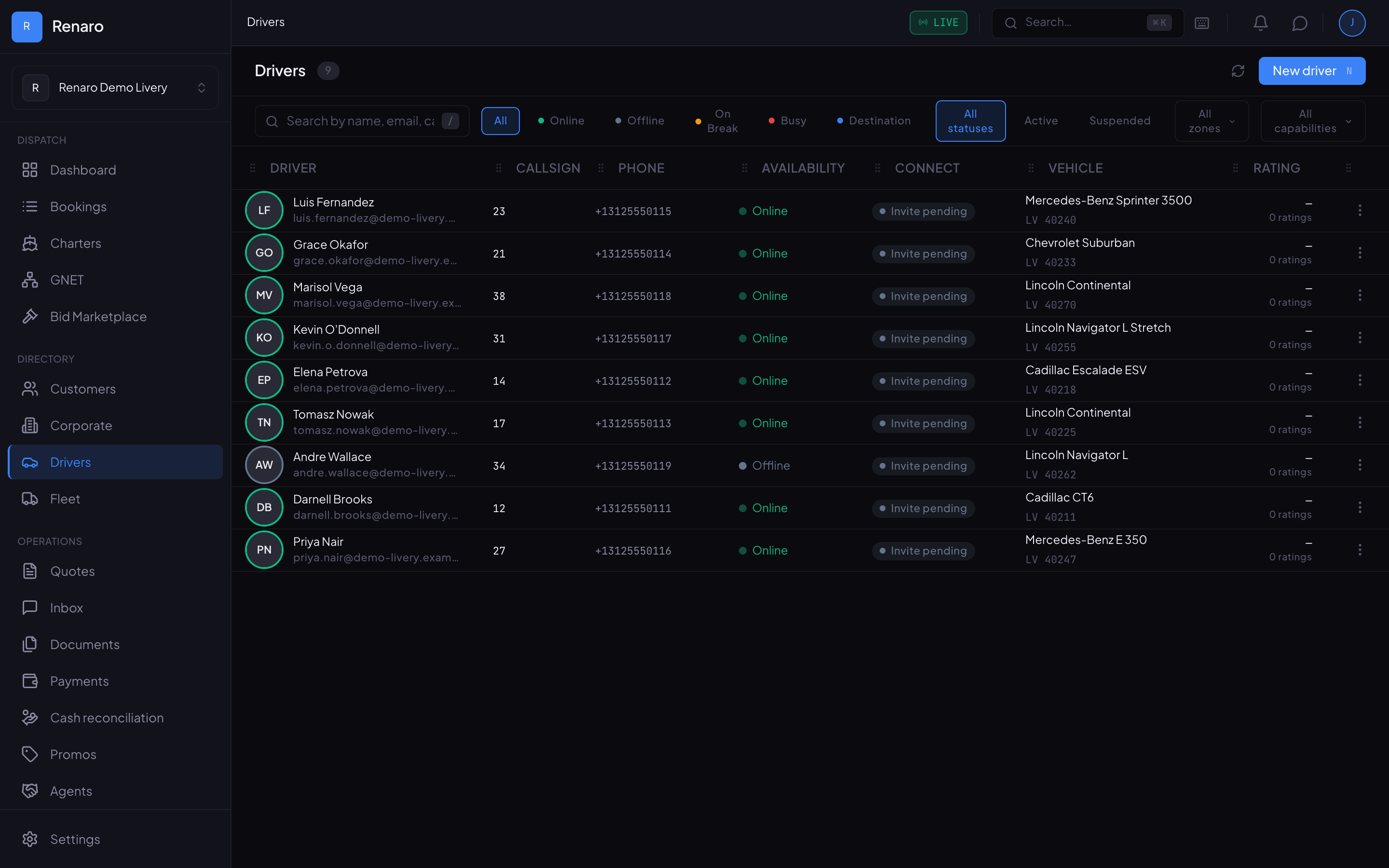
The Drivers page. New driver is at the top right. -
Step 3: Fill in Full name, Email and Phone. The phone country code starts as US / Canada +1.
Leave Callsign for step 5; it isn't saved from this page.
-
Step 4: Click Create & continue to profile. You'll see Driver created, and Renaro emails the driver an invitation to the app.
-
Step 5: On the driver's profile, on the General tab, fill in Callsign and License Number, then click Save changes.
Part 2: Give them a vehicle
-
Step 1: On the driver's profile, click the Vehicles tab.
-
Step 2: Click Assign vehicle, or Show picker, and find the car by make, model or plate.
-
Step 3: Click Assign. The first vehicle you assign becomes their primary vehicle, which is the one Renaro sends with them.
To change it later, click the star (Set as primary) next to another vehicle.
Part 3: Check the invitation
-
Step 1: On the driver's profile, click the Availability & Access tab and find Access controls.
-
Step 2: It should say Invitation sent. The driver must accept it and sign in before app access is enabled.
If it says Invite this driver to sign in with the email on their profile., click Send driver invitation.
-
Step 3: Once the driver signs in, it changes to Driver identity verified. App access can be managed below. and Driver app access turns on by itself.
Part 4: What the driver does
-
Step 1: Install the Renaro Driver app on their phone.
-
Step 2: Open the invitation email and accept it.
-
Step 3: Open the app, tap Sign In, and sign in with the same email the office entered.
-
Step 4: On the Home tab, tap GO ONLINE. The first time, tap Continue to let the app use their location while they drive.
The button changes to ONLINE and the app shows Waiting for trip offers... until a trip arrives. To stop, tap the button again and choose Go Offline.
-
Step 5: To add their license and other papers, they tap Profile, then Documents, then Upload Document, and take a photo.
You're ready when…
each driver has signed in on their phone, has a vehicle, and shows Online after tapping GO ONLINE.
Next step: Set up rates and zones
If something looks wrong
-
A driver with this email already exists in this organization.
That email is already on your Drivers list. Type it into Search by name, email, callsign... to find the driver.
-
Enter a valid number or include its international country code.
Check the phone number and the country code in front of it.
-
The driver never got the invitation email.
Ask them to check spam. There is no resend button once an invitation has gone out, so if it's lost, call us.
-
The app says This account does not have access to the driver app. Contact your operator.
The driver signed in with a different email than the one on their profile, or hasn't accepted the invitation yet.
-
The app says No vehicles are assigned to you. Ask your operator to assign one before going online.
Give them a vehicle (part 2), then have them try again.
-
The CONNECT column on the Drivers list says Invite pending.
That column is about the driver's payout account, not the app invitation. The invitation status is on the driver's Availability & Access tab.
-
The Go live checklist's Invite a driver step opens Team Access.
Team Access is for office staff. Add drivers on the Drivers page as shown above.
Still stuck?
Call +1 (630) 998-6261 or email support@renaroapp.com. Tell us which guide you were following and the step you were on.