Send a pay link and collect payment
Text the customer a secure link to pay for their reservation by card, and see when it's been paid.
Before you start
- Your company must be connected to Stripe once before customers can pay by card (part 1). That needs the Owner, Admin or Finance role.
- Add at least one fare profile first. See Set up rates and zones.
- The reservation must be linked to a customer who has a mobile number or an email.
- Renaro works out the amount: whatever is still owed on the reservation. You can't type a different amount into a pay link.
Steps
Part 1: Connect to Stripe (once)
-
Step 1: Open the Go live checklist from the button at the bottom right of the screen, and find Connect payments (Stripe).
If your company is already live, go to Earnings in the left menu instead and use the Stripe box at the top.
-
Step 2: Click Connect with Stripe and follow Stripe's steps to add your business and bank details.
-
Step 3: Back in Renaro, wait for the status to read Ready — charges and payouts enabled.
Part 2: Send the pay link
-
Step 1: Open the reservation from Bookings.
-
Step 2: Find the Payment ledger card and its Payment requests section.
-
Step 3: Click Text pay link. You'll see Pay link queued for delivery.
Renaro texts the link if the customer has a mobile number, and emails it if not. The text reads like "Renaro Demo Livery: pay $95.00 for your ride securely" followed by the link.
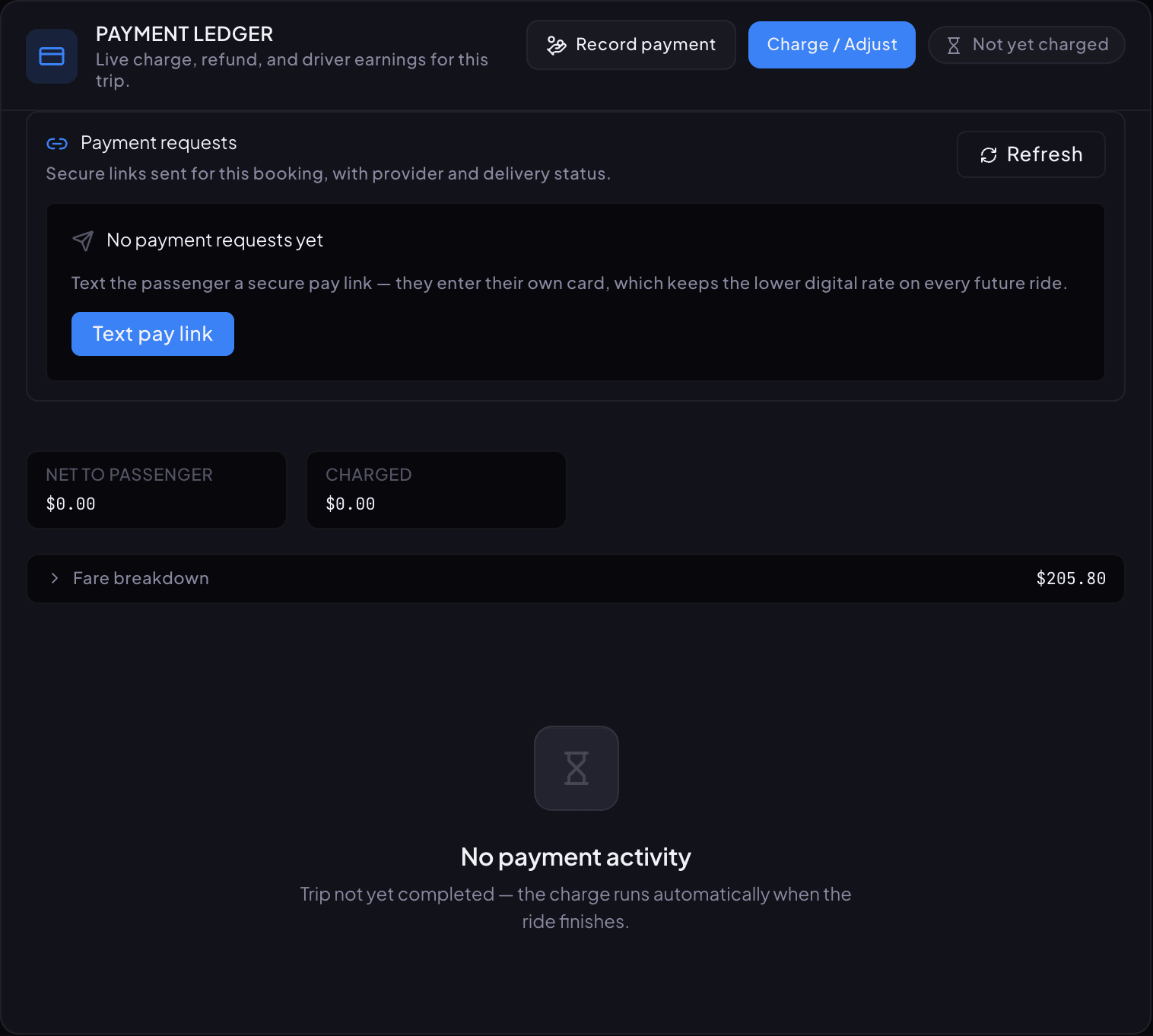
The payment panel on a reservation. Text pay link sends the customer a secure link. -
Step 4: To send it yourself instead, click Copy link on the request and paste it into your own message.
Part 3: Or send it while taking the reservation
-
Step 1: In Create reservation, set Payment method to Card.
-
Step 2: Under Payment, tick Customer agreed to the card payment terms, then choose Text a secure pay link.
-
Step 3: Click Create Booking, check the Review reservation, and click OK.
-
Step 4: The panel moves on to Take payment. You'll see Pay link sent to the passenger. Click Done, and you'll see Reservation created.
Part 4: See that it's paid
-
Step 1: The request shows its progress: Link sent, Opened by passenger, Card saved, then Paid.
-
Step 2: When the customer pays, the request shows Paid and the Payment ledger shows Charged. On the Payments page the payment shows Captured.
If something looks wrong
-
Booking has no passenger email or phone for payment-link delivery.
Add a mobile number or email to the customer, then send the link again.
-
Booking has no linked passenger; a pay link vaults the card against the passenger record.
The reservation isn't linked to a customer. Edit it and pick the customer in Customer lookup.
-
An active payment request already exists for this booking.
A link is already out. Use Copy link on it, or Revoke it and send a new one.
-
Booking has no remaining balance to request.
The reservation is already paid in full.
-
The customer's payment fails with a Stripe message.
Your Stripe connection isn't finished. Check the Connect payments (Stripe) status (part 1) and finish any steps Stripe still needs.
-
The customer says This payment link has expired.
Click Reissue on the request to send a fresh link.
Still stuck?
Call +1 (630) 998-6261 or email support@renaroapp.com. Tell us which guide you were following and the step you were on.