Refund or adjust a charge
Give a full or partial refund on a card payment, waive a fee, or charge the customer's card a new total after the trip, for example for wait time.
Before you start
- You need the Owner, Admin or Finance role.
- You can refund card payments that show Captured or Partially refunded.
- Charging a new total needs a card saved on the customer.
Steps
Part 1: Refund a card payment
-
Step 1: In the left menu, click Payments. Stay on the All Payments tab.
-
Step 2: Find the payment and click its Refund button in the Actions column.
-
Step 3: The Issue Refund window shows Available to refund. For a partial refund, type the Refund Amount. Leave it blank to refund everything.
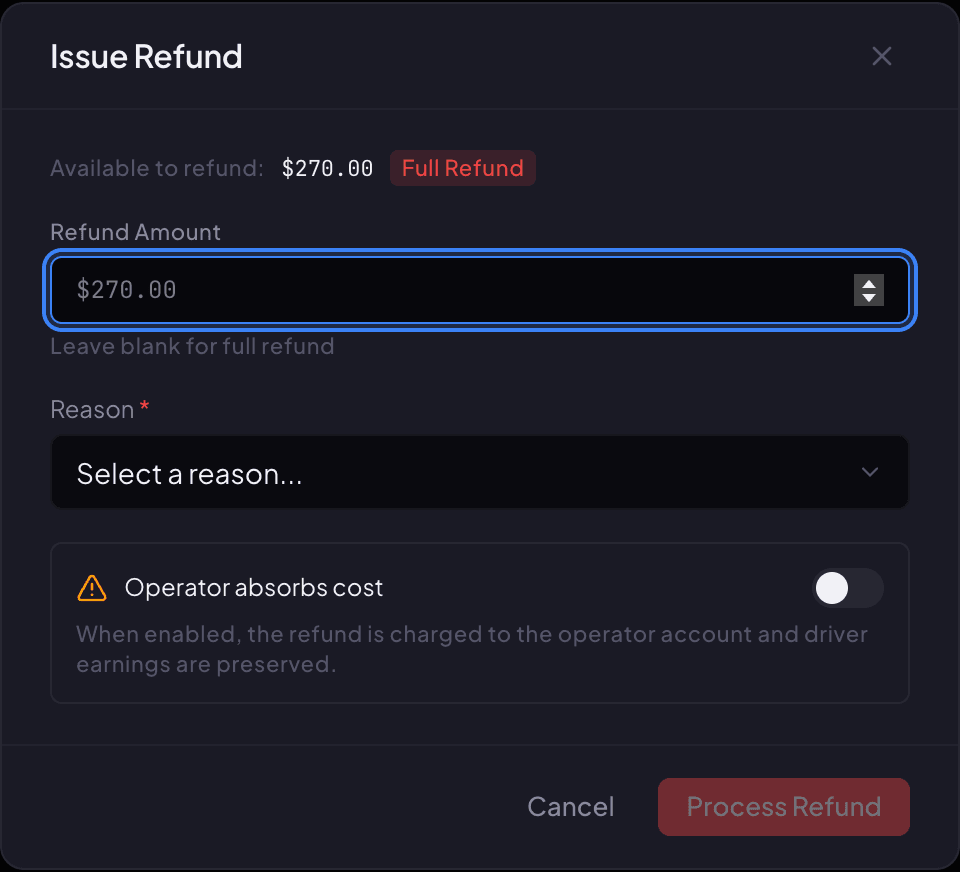
The Issue Refund window on the Payments page. -
Step 4: Choose a Reason: Customer request, Service issue, Overcharge, Duplicate charge or Other.
-
Step 5: If your company is covering the refund and the driver keeps their pay, turn on Operator absorbs cost and fill in Reason for absorption.
-
Step 6: Click Process Refund. The window closes and the payment shows Refunded or Partially refunded.
There is no confirmation message; the new status is your confirmation.
Part 2: Waive a cancellation or no-show fee
-
Step 1: On Payments, click the Fees & Charges tab.
-
Step 2: Click Waive fee on the fee, add a Note (optional), and click Waive Fee. This refunds the whole fee.
Part 3: Charge a new total after the trip
-
Step 1: Open the reservation and find the Payment ledger card.
-
Step 2: Click Charge / Adjust.
-
Step 3: In Amount (USD), type the new total you want to charge, not just the extra.
For example, if the trip was $95.00 and you're adding $20.00 of wait time, type 115.00.
-
Step 4: Fill in Reason (required), such as "20 minutes of waiting time at O'Hare". It's kept on record, and the customer can ask for it on their receipt.
-
Step 5: Choose the saved card under Payment method, tick the confirmation box, and click Confirm charge. You'll see Charge completed.
If something looks wrong
-
There's no Refund button on a payment.
Only card payments that show Captured or Partially refunded can be refunded, and only while money is left to refund.
-
Cannot exceed original amount of followed by an amount.
You typed more than is left to refund. Use the amount next to Available to refund, or leave it blank.
-
ACH invoice collections cannot be refunded from the payments desk.
Money a corporate client paid by bank debit is settled with the client directly, not refunded here.
-
This passenger has no saved card. Ask them to add one before charging.
Send them a pay link so they save a card. See Send a pay link and collect payment.
-
The charge shows that the booking is in a status that cannot be charged.
You can charge a new total once the trip is in progress, completed or marked as a no-show.
-
Your driver added tolls or parking in the driver app, but you don't see them.
Extras entered in the driver app don't show in the office yet. Ask the driver for the amount and use Charge / Adjust.
Still stuck?
Call +1 (630) 998-6261 or email support@renaroapp.com. Tell us which guide you were following and the step you were on.