Issue an invoice
Invoice a corporate account for its completed trips on a schedule or right away, or email a single customer an invoice for one trip.
Before you start
- You need the Owner, Admin or Finance role.
- Corporate invoices include completed trips only. Trips still in progress wait for the next invoice.
- The corporate account needs a billing email and payment terms. See Create a customer or corporate account.
Steps
Part 1: Invoice a corporate account
-
Step 1: Click Settings, then under Billing & Pricing click Billing.
-
Step 2: Click the Invoice Schedules card.
-
Step 3: Click New schedule. On a new account, click Create schedule instead.
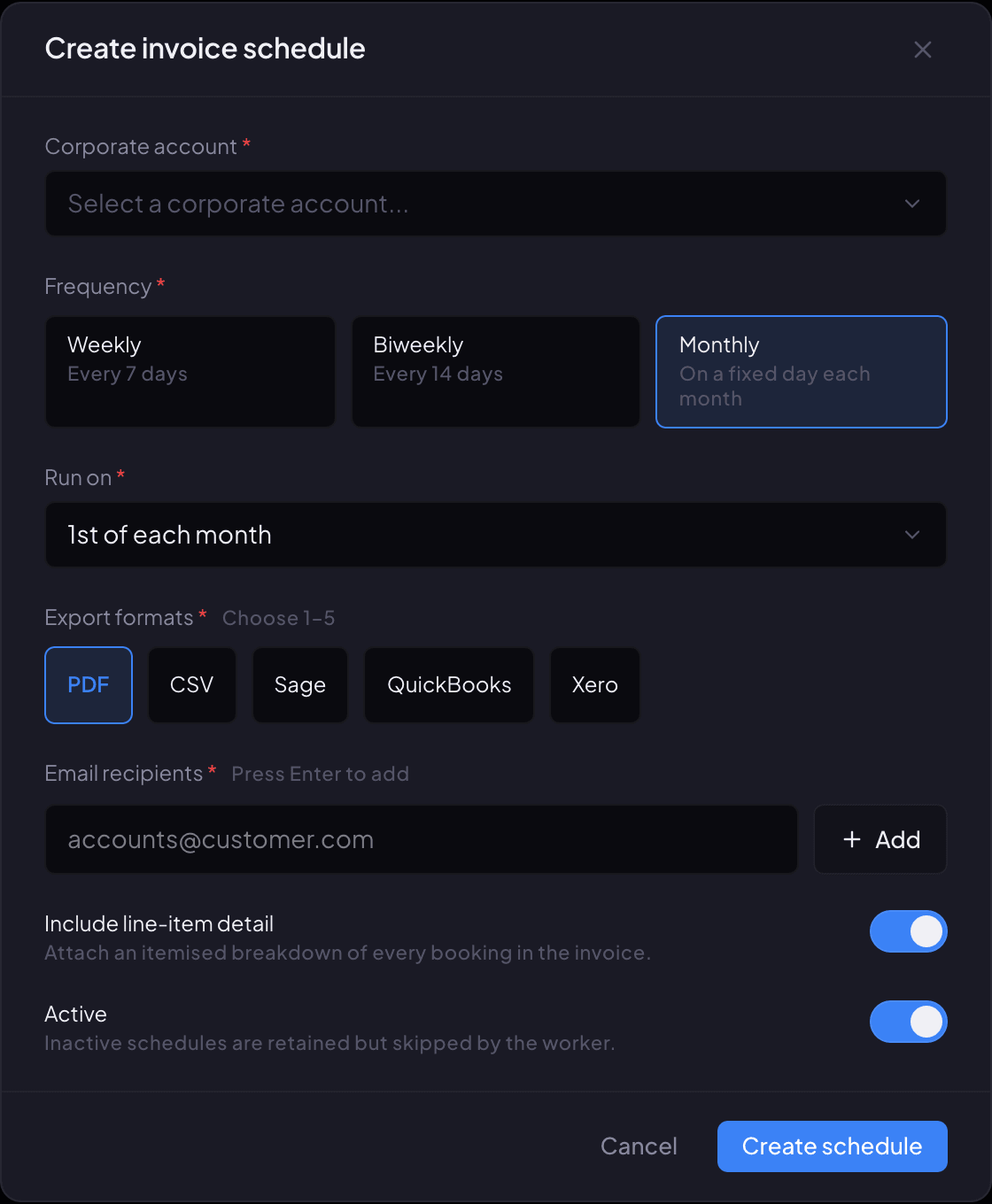
The Create invoice schedule window, opened from Settings, Billing, Invoice Schedules. -
Step 4: Choose the Corporate account, the Frequency (Weekly, Biweekly or Monthly) and the day under Run on.
-
Step 5: Under Export formats, choose PDF, plus CSV or your accounting package if you use one.
-
Step 6: Under Email recipients, type each address that should get the invoice and press Enter after each one.
-
Step 7: Leave Active on and click Create schedule. You'll see Invoice schedule created.
-
Step 8: To invoice now instead of waiting, click Run now on the schedule's row, then Run now again to confirm. You'll see Invoice generation queued.
Renaro builds the invoice from the account's completed trips, sets the due date from its payment terms, and emails it to the recipients.
Part 2: Email one customer an invoice for one trip
-
Step 1: In the left menu, click Documents.
-
Step 2: Under Render a document, set Type to Invoice, choose Single, and enter the Booking ID.
The Booking ID is in the reservation's web address, after /bookings/.
-
Step 3: Turn on Include pricing and click Email… to open the email window. Enter the Recipients and an optional Message, and click Send email. You'll see Email sent.
If something looks wrong
-
The schedule form shows Add at least one email recipient or Select at least one export format.
Type an address under Email recipients and press Enter, and tick at least one export format.
-
An invoice left out some trips.
Only completed trips are invoiced. Trips that were still open when the invoice ran go on the next one.
-
You need to record a check or wire against an invoice.
Open Reports, then Aged Receivables, open the account, and click Record Payment on the invoice.
-
You need to void or resend an invoice, or invoice a hand-picked set of trips.
Those aren't available in Renaro yet. Call us and we'll help.
Still stuck?
Call +1 (630) 998-6261 or email support@renaroapp.com. Tell us which guide you were following and the step you were on.