Getting started, step 1 of 7
Sign in and add your team
Sign in to Renaro for the first time, then invite your dispatchers and office staff and turn on their access.
Before you start
- Use the work email your company's Renaro account was set up with.
- Only the Owner can invite people. Admins can see the invite form, but the invite won't go through.
- Have each person's work email ready, and decide what they'll do in the office.
- Drivers are added on the Drivers page instead. See Add drivers and invite them to the driver app.
Steps
Part 1: Sign in
-
Step 1: Open app.renaroapp.com in your web browser. The page says Sign in to Renaro.
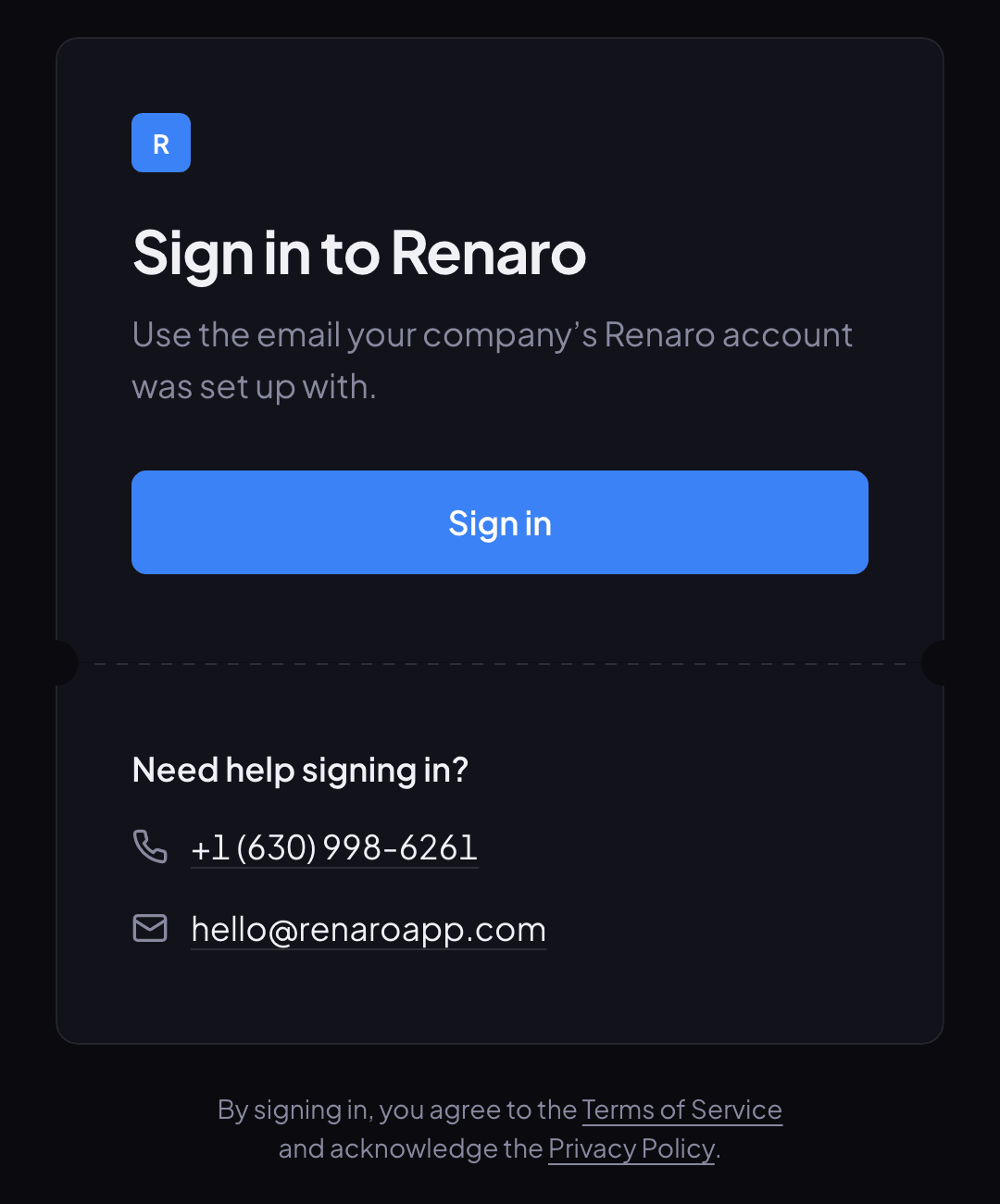
The sign-in page at app.renaroapp.com. Everyone in your office signs in here. -
Step 2: Click Sign in, then enter your work email on the next page and follow the prompts to confirm it's you.
-
Step 3: You land on the Dispatch screen. A new company also sees a Go live button at the bottom right of the screen.
Go live opens a checklist of setup steps. The Getting started guides follow the same order.
Part 2: Invite a teammate
-
Step 1: In the left menu, click Settings at the bottom.
-
Step 2: In the Settings menu, under Governance, click Team Access.
-
Step 3: In the Invite employee box, type the person's Email address. Add their name under Name (optional).
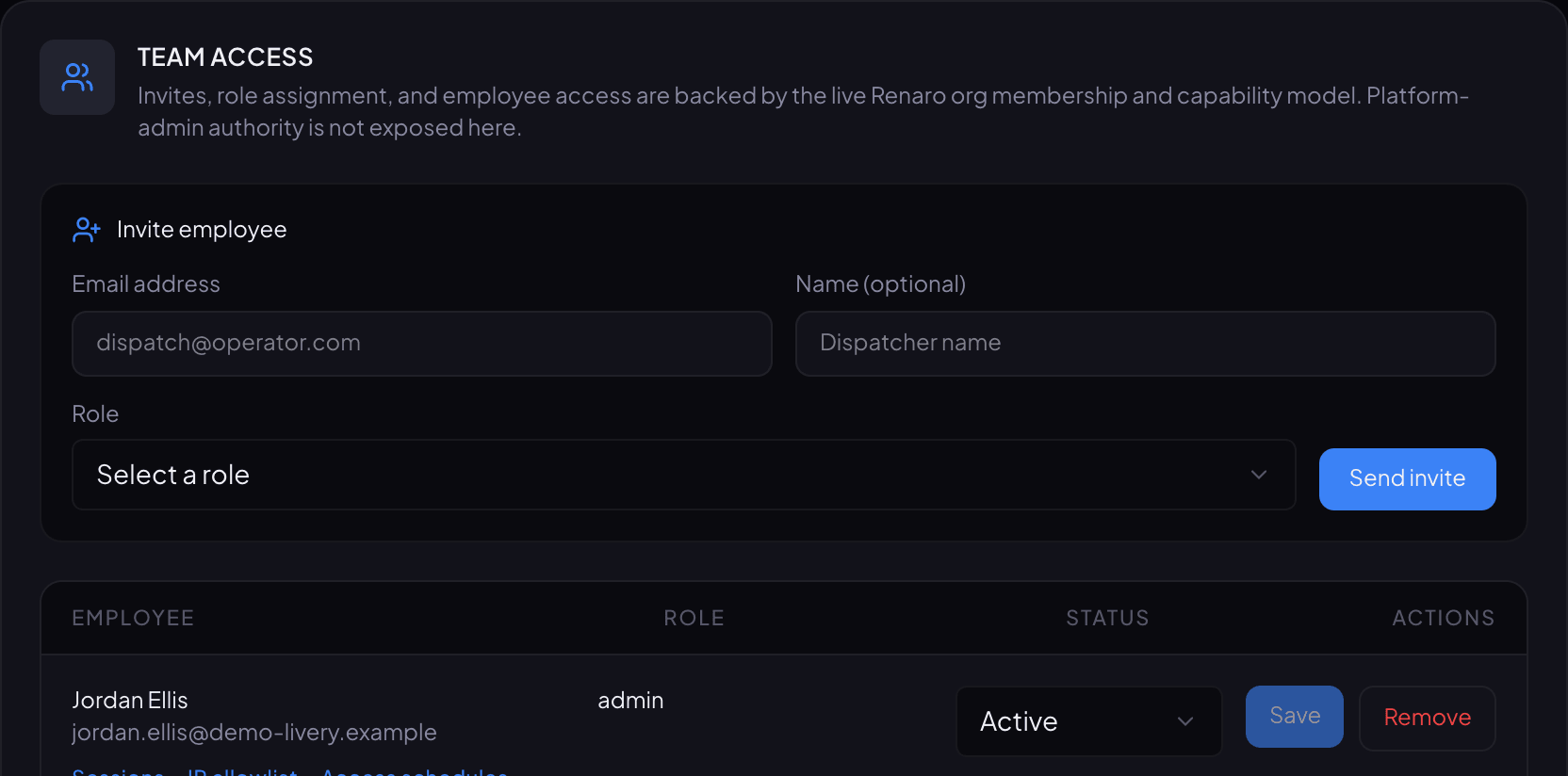
Settings, Team Access: the Invite employee box above the list of everyone on your team. -
Step 4: Open Role and choose the one that fits their job: Admin, Dispatch, Finance or User.
Admin runs operations, staff, settings and standard billing. Dispatch handles reservations, dispatch, drivers and vehicles. Finance handles billing, invoicing, exports and finance reports. User is a standard account without staff, billing or settings access.
-
Step 5: Click Send invite. The person appears in the list below the box. There is no pop-up message; the new row is your confirmation.
Part 3: Turn on their access
-
Step 1: Find the new person in the list. Their Status shows Select… until someone turns their access on.
-
Step 2: Open their Status menu, choose Active, then click Save in the same row.
-
Step 3: Tell them to go to app.renaroapp.com and sign in with the email you entered.
Renaro also emails them, but that email has no link in it, so give them the address yourself.
You're ready when…
each person in your office can sign in and their Status in Team Access says Active.
Next step: Set up your company
If something looks wrong
-
The invite shows Missing permission: roles.assign.
Only the Owner can invite people. Ask your Owner to send the invite.
-
The invite shows Recent MFA is required for this operation.
Renaro asks you to have signed in within the last eight hours before you invite anyone. Click your initial at the top right, choose Sign out, sign back in, and try again.
-
Your teammate sees This login is not assigned to an operator org.
Their access isn't turned on yet, or they signed in with a different email. Check that their Status is Active in Team Access and that the email matches.
-
You see Your account didn't load after signing in.
Click Try again. If it happens again, click Sign out, then sign back in.
-
The page says Your current role can review the team roster but cannot invite new employees.
Your role can see the team but not add to it. Ask your Owner.
-
User is already a member.
That email is already on your team list. Find it in the list and check its Status.
-
You clicked Remove on the wrong person.
Remove takes effect right away and doesn't ask first. Call us and we'll help you restore their access.
Still stuck?
Call +1 (630) 998-6261 or email support@renaroapp.com. Tell us which guide you were following and the step you were on.