Getting started, step 2 of 7
Set up your company
Tell Renaro what kind of operation you run, set your time zone, currency and fees, and add your offices and hours.
Before you start
- You need the Owner or Admin role to change settings. Other roles can look but not save.
- Know the full name of your time zone, such as America/Chicago for Central time.
- Decide your cancellation and no-show fees, if you charge them.
Steps
Part 1: Your operation and defaults
-
Step 1: Click Settings at the bottom of the left menu. You start on the General page.
-
Step 2: Under What kind of operation are you?, choose Chauffeur or limo, Mixed fleet, or the taxi option. It saves right away and shows Operation profile updated.
This decides which menu items Renaro shows first. Nothing is taken away: Show all features at the top of the menu brings back the rest.
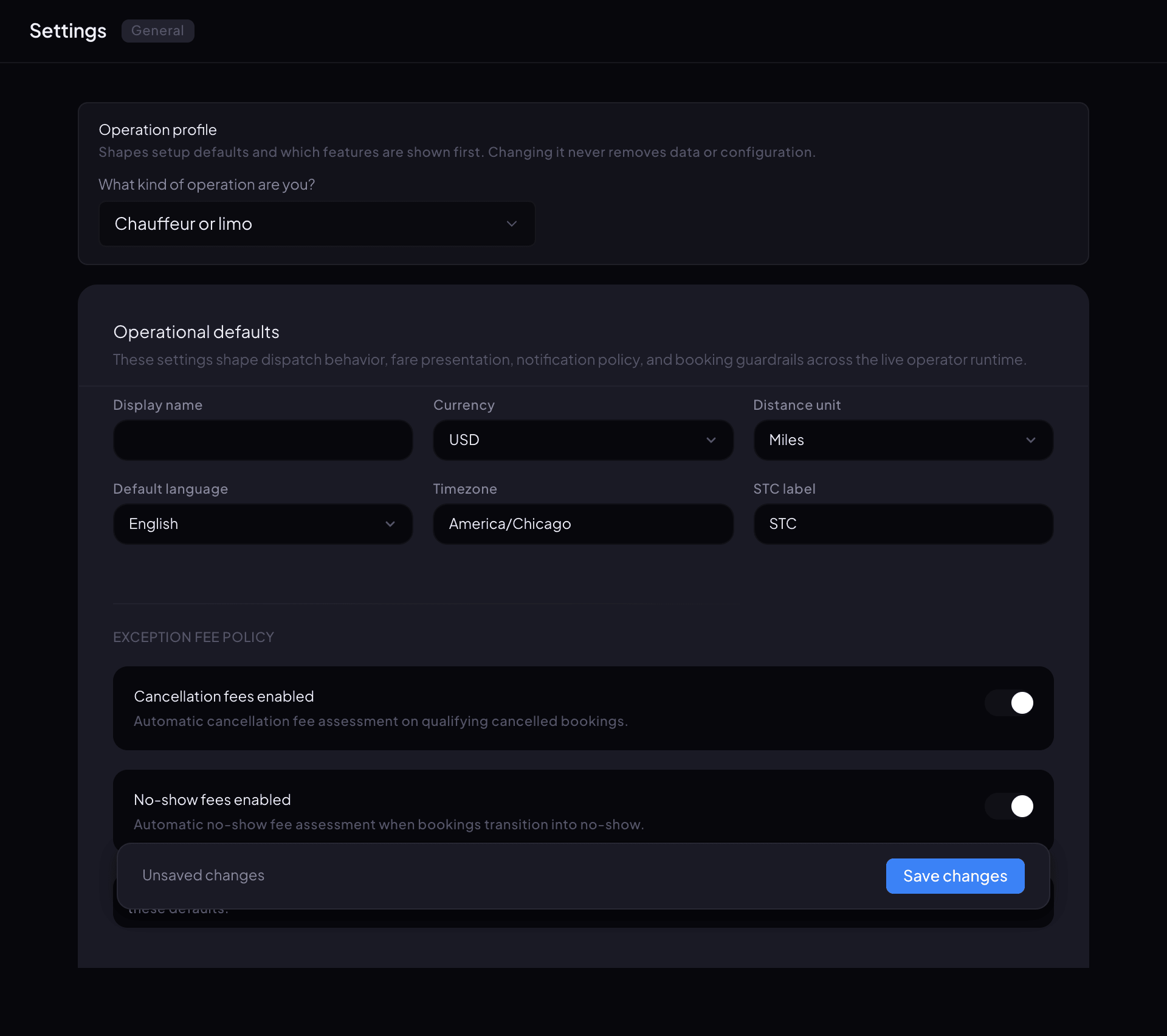
Settings, General: your type of operation and your company's defaults. -
Step 3: Under Operational defaults, check Display name, Currency, Distance unit and Default language.
-
Step 4: In Timezone, type the full time zone name, such as America/Chicago.
Renaro takes whatever you type here, so spell it exactly. Short forms like "CST" or "Chicago" are saved but won't work.
-
Step 5: Under Exception fee policy, turn on Cancellation fees enabled or No-show fees enabled if you charge them. Enter the amounts and the Free cancellation window (minutes).
-
Step 6: Click Save changes in the bar that appears. It changes to Saved.
Part 2: Your offices
-
Step 1: Skip this part if you run from one location. Otherwise, in Settings under Geography, click Offices.
-
Step 2: Click Add Office.
-
Step 3: Type the Office Name, such as Naperville or O'Hare. Add the Address (optional) and, if it's different from the company's, the Timezone (optional).
-
Step 4: Click Add Office. Each office gets its own dispatchers, vehicles and reservation list.
Part 3: Your operating hours
-
Step 1: In Settings under Dispatch Config, click Booking Workflow, then the Operating Hours tab.
-
Step 2: Choose the Scope: your whole company, or one office.
-
Step 3: Set the hours for each day, or use Set 24/7 or Set weekdays only. Copy to all days repeats one day's hours.
-
Step 4: Click Save operating hours. You'll see Operating hours saved.
You're ready when…
your General settings show your type of operation and the right time zone, and your changes say Saved.
Next step: Add your vehicles
If something looks wrong
-
Save failed when you save the General page.
Check that STC label isn't empty; it needs a short label. If it still fails, your role may be able to view settings but not change them. Ask your Owner or an Admin.
-
Times on reservations are off by an hour or more.
Check the spelling of Timezone on the General page. It must be a full name such as America/Chicago.
-
Branding shows Could not load settings.
Your logo, colors and customer-facing name are set under Branding, which is included on the Scale plan. You can check your plan in Settings under Subscription.
-
You need to change your company's legal name, address or phone number.
Those are set when we create your account and can't be edited in Settings yet. Call us and we'll change them.
-
Couldn't update the operation profile. Please try again.
Pick the option again. If it keeps failing, sign out and back in, then try once more.
Still stuck?
Call +1 (630) 998-6261 or email support@renaroapp.com. Tell us which guide you were following and the step you were on.